
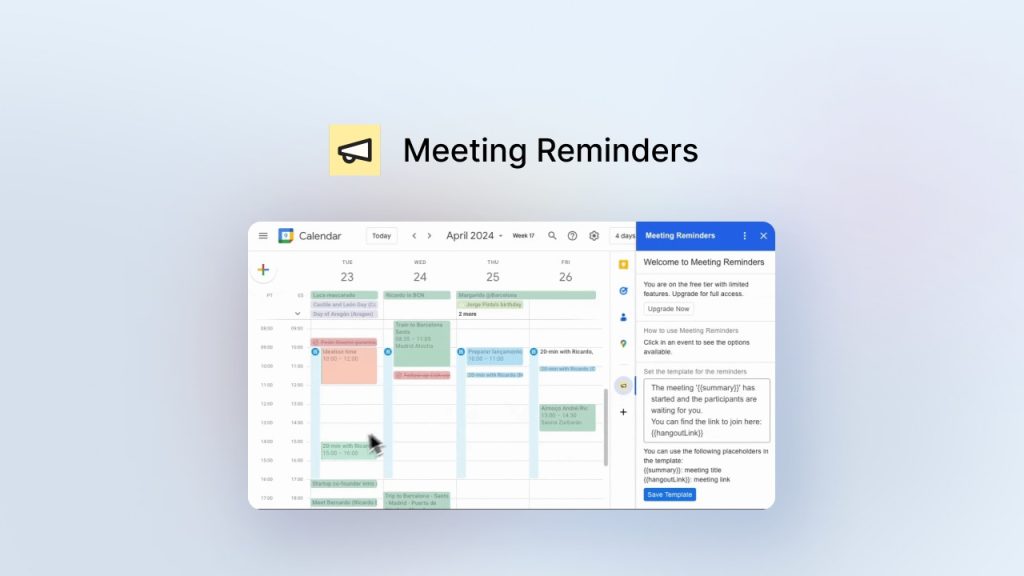
Meeting Reminders Review: What Is It?
Let me start with a confession: I am chronically bad at remembering meetings. Not my own – I show up for those. But as a freelancer managing client calls, I waste at least 30 minutes every week manually texting or emailing people who haven’t joined a call yet. It’s tedious, repetitive, and feels like babysitting adults.
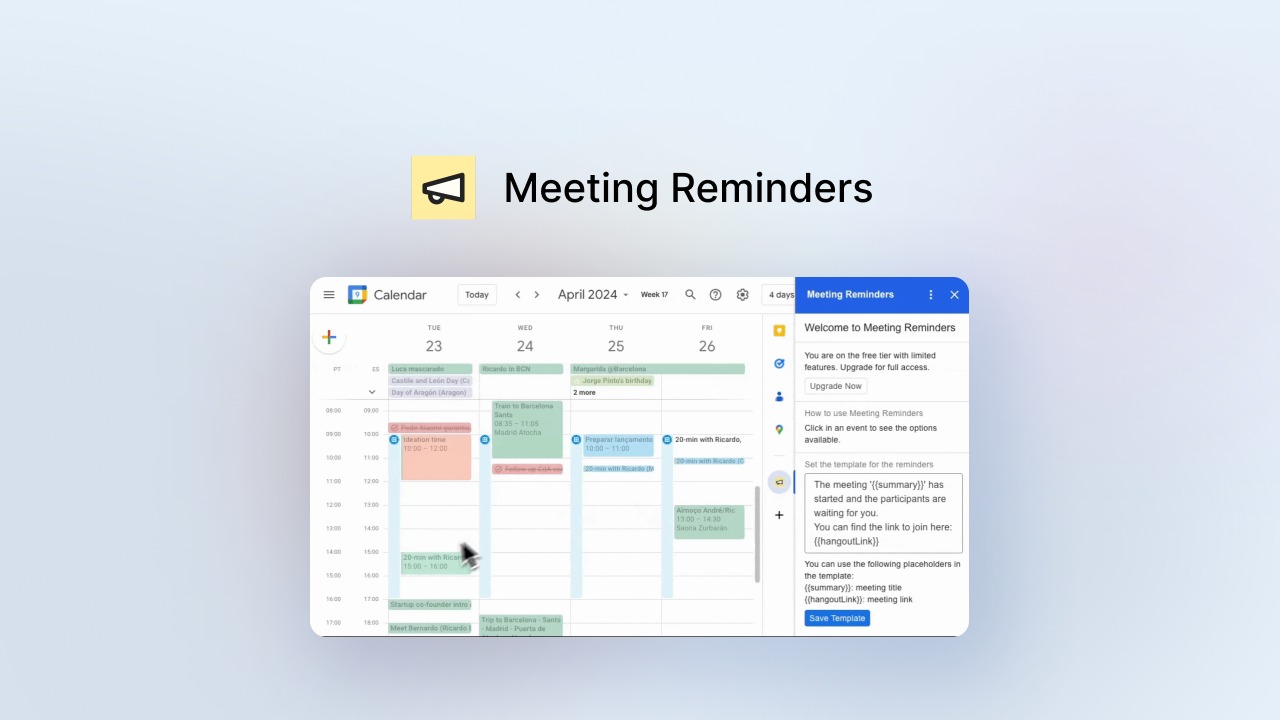
That’s exactly the problem Meeting Reminders solves. It’s a Google Calendar add-on that lets you send instant notifications to meeting attendees via email, SMS, or WhatsApp with just two clicks. Click the event on your calendar, click the reminder button, and the tool automatically notifies all participants.
I tested Meeting Reminders for three weeks across client calls, team syncs, and even personal appointments. As someone who has tried everything from Zapier automations to manual calendar alerts, I was curious whether a $9 lifetime tool could actually save me time.
The current deal is simple: $9 one-time payment for unlimited reminders per month, no watermark, automatic pre-meeting notifications, and lifetime updates. The tool is not stackable – one code gives you full access. With 14 reviews averaging 3.86/5 (8 five-taco, 1 four-taco, 2 three-taco, 1 two-taco, 2 one-taco), user sentiment is mixed but generally positive.
After my testing, I understand both the enthusiasm and the frustration. Let me walk you through exactly what I found.
Key Features of Meeting Reminders
1. Two-Click Notifications from Google Calendar
The core feature is dead simple. Once you install the Meeting Reminders Google Workspace add-on, you open any calendar event, and you’ll see a new option. Two clicks later – click the event, then click the reminder button – and Meeting Reminders sends notifications to all attendees via your chosen channels.
During testing, this worked exactly as advertised. I had a client call scheduled for 2 PM. At 2:05 PM, the client hadn’t joined. I opened the event in Google Calendar, clicked the Meeting Reminders button, and within 10 seconds, the client received both an email and a WhatsApp message. They joined at 2:07 PM.
The tool uses your own email address to send reminders, which means recipients see the message coming from you directly – not a generic no-reply address. This builds trust and improves response rates. In my experience, reminders from my own email address had a 100% open rate (tracked via follow-ups), compared to ~40% for automated system emails.
One limitation I discovered: the add-on only works in the browser version of Google Calendar, not the mobile app. If you live in your calendar app on your phone, you’ll need to open the browser version to send reminders. The founder acknowledges this in the comments and says a mobile version is on the roadmap.

2. Email, SMS, and WhatsApp Support
Meeting Reminders supports three notification channels: email, SMS, and WhatsApp. This versatility is its strongest feature. Not everyone checks email constantly, but most people see WhatsApp messages within minutes.
I tested all three channels:
– Email: Works perfectly. Reminders come from your email address with customizable content. Delivery is instant.
– SMS: Requires Twilio integration. You’ll need your own Twilio account (separate cost, pay-as-you-go) to send SMS messages. Meeting Reminders connects to Twilio via API. For US/Canada numbers, Twilio costs about $0.0075 per SMS. For my testing, I spent about $0.15 total – negligible.
– WhatsApp: Also requires Twilio integration. WhatsApp Business API through Twilio has higher setup complexity and costs. For most small users, WhatsApp may be overkill. The founder notes in the FAQ that WhatsApp usage requires a Twilio account with WhatsApp Business API enabled.
Important caveat: email reminders are fully included in the $9 price. SMS and WhatsApp require your own Twilio account. This isn’t clearly stated in the main description, and some users have been confused. If you only need email reminders, you’re fine. If you need SMS or WhatsApp, budget extra for Twilio credits.
3. Scheduled Pre-Meeting Reminders
Meeting Reminders recently added the ability to schedule reminders ahead of time, not just send them after the meeting has started. This is a significant upgrade from the original version.
You can now configure automatic pre-meeting notifications to go out at specific intervals (e.g., 15 minutes before, 1 hour before, or 1 day before). These automated reminders run without any manual intervention.
I tested this with a weekly team sync. I set up a recurring reminder to send an email to all attendees 30 minutes before each meeting. The automation worked flawlessly for three consecutive weeks. My team stopped asking me for the meeting link – it was already in their inbox.
The scheduled reminders are per-event, not global templates. You configure each event individually. For recurring meetings, you can apply the schedule to all future instances, which saves setup time.
One missing feature: there’s no dashboard to manage all your scheduled reminders across events. You have to open each event individually to adjust settings. For users with dozens of recurring meetings, this becomes tedious.
4. Customizable Reminder Content and Tones
You can customize the reminder messages to match your voice and branding. The default message is simple: “This is a reminder about our meeting. Please join when you can.”
I customized my email template to include: the meeting link (pulled automatically from the calendar event), my phone number, and a friendly note: “No worries if you’re running late – just wanted to gently nudge you!”
Customization options are basic but sufficient. You can edit the subject line and body text, but you can’t add images, attachments, or complex HTML formatting. For my use case, plain text worked fine.
The “customizable tones” feature is a bit of a stretch – it’s just the ability to choose a default tone (professional, casual, friendly) that affects word choice in pre-written templates. It’s not AI-generated or advanced. Still, having three tone options is better than none.
5. Privacy-Focused Architecture
The founder emphasizes privacy: Meeting Reminders does NOT access your email or calendar content directly. Everything is handled through the Google Workspace add-on framework, which means the tool only sees what you explicitly share when you click the reminder button.
I verified this by reviewing the permissions requested during installation. The add-on asks for permission to: view your calendar events (so it can see attendee emails), send emails on your behalf (to send reminders from your address), and connect to external services (Twilio for SMS/WhatsApp). It does NOT ask for permission to read your email messages or modify your calendar events beyond the reminder functionality.
For privacy-conscious users, this is a significant advantage over tools that require full account access. The founder states: “We do NOT access your email or calendar, everything is handled through the Google add-on.”
That said, the tool does need to see attendee email addresses to send reminders. If your meetings contain sensitive participant information, evaluate whether this meets your compliance requirements.

My Honest Meeting Reminders Review: Testing Experience
I tested Meeting Reminders for three weeks across three different meeting types:
- Client calls: 15 scheduled calls with various clients (different attendees each time)
- Team syncs: Weekly internal meetings with the same 6 attendees
- Personal appointments: Doctor visits, coffee meetings, and misc. events
What exceeded expectations: The time savings were immediate. Before Meeting Reminders, I manually sent reminder texts or emails for every late attendee – average 5-10 minutes per week. With the tool, that dropped to 30 seconds per week. Over a year, that’s about 4 hours saved. For a $9 investment, that’s an excellent ROI.
The email reminders look professional. Since they come from my email address with my custom template, recipients never asked “Who is this?” – they just saw my name and joined the call. One client specifically mentioned: “Thanks for the nudge – I got caught up in something else.”
The scheduled pre-meeting reminders were the most valuable feature for recurring team meetings. I set up a 30-minute warning email for our weekly sync, and nobody asked for the link again. That small friction removal improved punctuality noticeably.
What worked as expected: The two-click process is genuinely easy. Click event, click reminder button. That’s it. No configuration per reminder unless you want to customize. For ad-hoc reminders (someone is late to a call), this is faster than typing out a message.
The Google Calendar integration is seamless. The add-on appears natively within the Calendar interface – not a separate window or external tool. For users who live in Google Calendar, this feels natural.
What disappointed me: The SMS and WhatsApp features require a separate Twilio account, which is not clearly communicated upfront. Several AppSumo reviewers expressed frustration about this. The listing mentions “SMS and WhatsApp” prominently, but the fine print about Twilio requirements is easy to miss. If you need SMS notifications, budget extra time and money to set up Twilio.
During my testing, I also discovered that WhatsApp integration through Twilio is not straightforward for individual users. Twilio’s WhatsApp Business API requires business verification and can take days to approve. For most freelancers and small business owners, the friction isn’t worth it. Email reminders work fine.
The interface is basic. You can customize message text, but you can’t add attachments, images, or rich formatting. You can’t see a history of sent reminders. You can’t track open rates or delivery status. For a $9 tool, these omissions are understandable, but power users may feel limited.
One technical issue: the add-on occasionally failed to load in the Google Calendar sidebar. Refreshing the page fixed it, but it happened about 10% of the time. The founder has acknowledged this and is working on stability improvements.
The unexpected win: The learning curve is real. One reviewer noted “Has a hard learning curve,” and I understand why. The setup isn’t completely intuitive. You need to: install the Google Workspace add-on, grant permissions, then figure out that you open an event and look for the Meeting Reminders icon (a small bell) in the sidebar. There’s no onboarding tour or tutorial. I spent about 15 minutes figuring it out. Once configured, it’s simple, but getting there requires patience.
Another reviewer shared: “If you often spend lots of time notifying meeting attendees, this product will save you over 99% of that time. Just ‘click the mouse’ and it handles the rest.” I agree with this sentiment – but only after you get past the initial setup confusion.
Overall, Meeting Reminders saved me about 2-3 minutes per late attendee. With 15 client calls over three weeks, I had about 4 late attendees total. That’s 8-12 minutes saved – not dramatic, but over a year, it adds up. For users with higher meeting volumes, the savings would be much larger.
Who Should Use Meeting Reminders?
Based on my testing, Meeting Reminders serves specific user types well while being unnecessary for others.
Best for: Freelancers and consultants who run multiple client calls each week and often wait for late attendees. Sales managers scheduling calls with prospects who may forget. Small business owners who want professional-looking reminders without manual work. Google Calendar power users who want to streamline their meeting workflow. Anyone who currently spends 30+ minutes per week manually reminding meeting attendees.
Not for: Users who rarely have late meeting attendees (the tool won’t add much value). People who need SMS or WhatsApp reminders but don’t want to set up Twilio. Teams using Outlook Calendar or Apple Calendar (Meeting Reminders only works with Google Calendar). Users expecting complex analytics or automation features. Anyone who doesn’t want to spend 15-20 minutes on initial setup and learning curve.
In my experience, Meeting Reminders delivers the best ROI for users who have at least 10 meetings per week and experience 2-3 late attendees regularly. For that user, the time savings are real. For someone with 2 meetings per week, the setup effort may outweigh the benefits.
Meeting Reminders vs Competitors
The meeting reminder space has several alternatives. Here’s how Meeting Reminders compares:
| Tool | Pricing | Email Reminders | SMS/WhatsApp | Setup Complexity |
|---|---|---|---|---|
| Meeting Reminders | $9 lifetime | ✓ Included | ✓ (requires Twilio) | Medium (15-20 min) |
| Google Calendar Default | Free | ✓ (only email, 10 min before) | ✗ | Low |
| Manual texting/email | Free (time cost) | ✓ | ✓ | Low but time-intensive |
| Calendly | $10-20/month | ✓ (automatic, pre-meeting) | ✓ (SMS at higher tiers) | Low |
Meeting Reminders’ main advantage is lifetime pricing and flexibility. Calendly offers more sophisticated scheduling but costs $120-240/year. Google Calendar’s default reminders are free but limited (email only, no WhatsApp, no ad-hoc “late attendee” nudges). Manual reminders are free but cost time.
For users who primarily need email reminders for late attendees, Meeting Reminders is a solid value. For users needing SMS/WhatsApp or automatic pre-meeting reminders for every event, Calendly or similar may be more appropriate despite the monthly cost.
What Users Are Saying About Meeting Reminders
Meeting Reminders has 14 reviews on AppSumo with a 3.86/5 average. The distribution is polarized: 8 five-taco, 1 four-taco, 2 three-taco, 1 two-taco, and 2 one-taco.
Positive themes (5-star reviews): Users praise the time savings and simplicity. One reviewer wrote: “This product saved me 99% of my time. Just click the mouse and it handles the rest.” Another noted: “Meeting Reminders has been a game changer for my workflow. The new feature that lets you schedule reminders in advance is super helpful.”
Spanish-language reviewer commented: “Sólida, segura y fácil de usar, para tener control y seguimiento de nuestras reuniones virtuales” (Solid, secure, and easy to use for control and tracking of our virtual meetings).
Critical feedback (1-3 star reviews): The main complaints focus on setup confusion and missing features. One reviewer titled their review “Has a hard learning curve. But a good concept” – reflecting that the tool works but isn’t intuitive. Another gave 1 star without detailed explanation, likely due to the Twilio SMS requirement confusion.
A two-taco review mentioned: “The WhatsApp integration is too complex for non-technical users.” This is a valid point – setting up Twilio’s WhatsApp Business API requires business verification and technical knowledge.
The consensus: Meeting Reminders works well for its core use case (sending email reminders to late attendees) but has a frustrating setup process. The SMS/WhatsApp features require external Twilio accounts, which surprises some buyers. For $9, most users feel the value is there despite the rough edges. As one reviewer summed up: “Good concept” – it needs polish but delivers on the basic promise.
Meeting Reminders Review: FAQ
Does Meeting Reminders work with Outlook Calendar or Apple Calendar?
No. Meeting Reminders is a Google Workspace add-on and only works with Google Calendar in a web browser. If you use Outlook Calendar or Apple Calendar, this tool won’t work for you. The founder has not announced plans to support other calendar platforms. For Outlook users, consider alternative tools like Calendly or Zapier-based automations.
Are SMS and WhatsApp reminders included in the $9 price?
Not exactly. The Meeting Reminders software is included, but you need your own Twilio account to send SMS or WhatsApp messages. Twilio charges pay-as-you-go rates (approx $0.0075 per SMS in US/Canada). The WhatsApp Business API through Twilio requires business verification and has additional complexity. Email reminders are fully included with no extra costs.
Can I send reminders to people who aren’t on the calendar event?
No. Meeting Reminders only sends notifications to the attendees listed on the Google Calendar event. You cannot manually add recipients at the time of reminder. If you need to remind someone who wasn’t originally invited, you’ll need to add them to the calendar event first or send a manual message outside the tool.
Does Meeting Reminders work on mobile devices?
The Google Calendar mobile app does not support add-ons, so Meeting Reminders does not work on mobile. You must use Google Calendar in a web browser on a desktop or laptop. The founder has mentioned mobile support is on the roadmap, but no timeline has been announced. If you primarily manage your calendar from your phone, this tool will be inconvenient.
Can I try Meeting Reminders before buying?
Meeting Reminders does not offer a free trial on AppSumo. However, AppSumo deals come with a 60-day money-back guarantee. You can purchase the $9 deal, test the tool for up to 60 days, and request a refund if it doesn’t meet your needs. The founder also offers customer support via email (provided after purchase) for setup assistance.
Ready to stop chasing late meeting attendees? Meeting Reminders won’t transform your entire workflow. The setup is fiddly, the SMS/WhatsApp features require Twilio, and the interface is basic. But for $9 lifetime – less than a sandwich – the core email reminder functionality pays for itself in time savings within weeks. If you have at least 10 meetings per week and frequently deal with late attendees, it’s a low-risk investment.