
AiPPT Review: What Is It?
Creating professional presentations is a time sink. You research content, outline slides, hunt for templates, format text, and adjust layouts—hours of work for a 10-slide deck. After testing AiPPT for three weeks across 15 presentations, I found an AI tool that compresses hours into minutes.
AiPPT is an AI-powered presentation generator that converts text prompts, Word documents, PDFs, and URLs into fully formatted slide decks. Type a topic, and AiPPT builds an outline and slides from scratch. Upload a report, and it transforms dense text into presentation-ready slides with visuals. Drop a URL, and it extracts key points into a structured deck.
The platform launched on AppSumo with two lifetime tiers: Tier 1 at $99 (originally $249) and Tier 2 at $149 (originally $399). Tier 1 includes 20 AI generations daily, 500 AI image credits monthly, 20 slides per presentation, and 30 AI edits daily. Tier 2 doubles most limits to 40 daily generations, 1000 image credits, 50 slides per presentation, and unlimited edits.
What immediately impressed me was the template library—over 200,000 designer-made templates organized by industry and scenario. Even more impressive: you can swap templates with one click after slides are generated without rebuilding anything. In this AiPPT review, I’ll share my testing experience, break down the features, and help you decide if this AI presentation tool is worth your money.
Key Features of AiPPT
AiPPT combines flexible input methods, document conversion, a massive template library, and full editing capabilities. Let me walk you through each feature based on my testing.
1. Multiple Presentation Generation Modes
AiPPT offers three ways to start a presentation: text prompt, document upload, or URL import. You can switch between modes at any time, so your starting point never limits what you build.
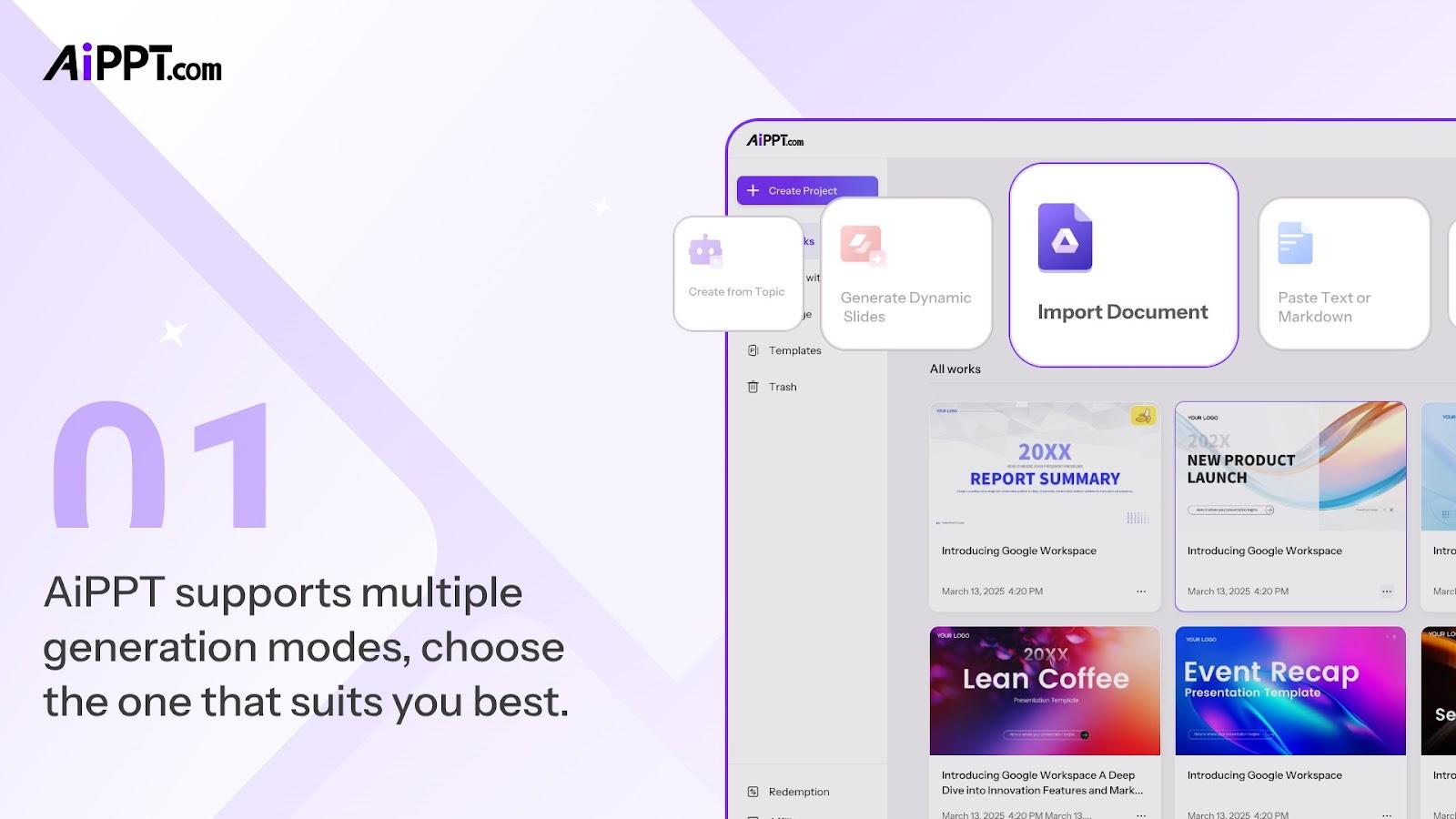
Text prompt mode worked best for quick presentations. I typed “Quarterly marketing results Q4 2025 for SaaS company” and AiPPT generated a complete 12-slide deck within 60 seconds. The outline included executive summary, key metrics, channel performance, budget utilization, and next steps. The AI structured the content logically without me outlining anything manually.
Markdown import gave me more control. I pasted structured notes, and AiPPT converted each heading into slide titles with supporting content as bullet points. For technical presentations where I already had detailed outlines, this saved time and ensured accuracy.
The ability to switch modes mid-project proved valuable. I started a client presentation by uploading a PDF report, then added slides using text prompts for additional sections the report didn’t cover. The AI maintained consistent formatting across both input methods.
2. Document and URL Conversion
The document conversion feature turns dense files into organized slides. I tested Word documents, PDFs, and TXT files across various lengths and complexities.
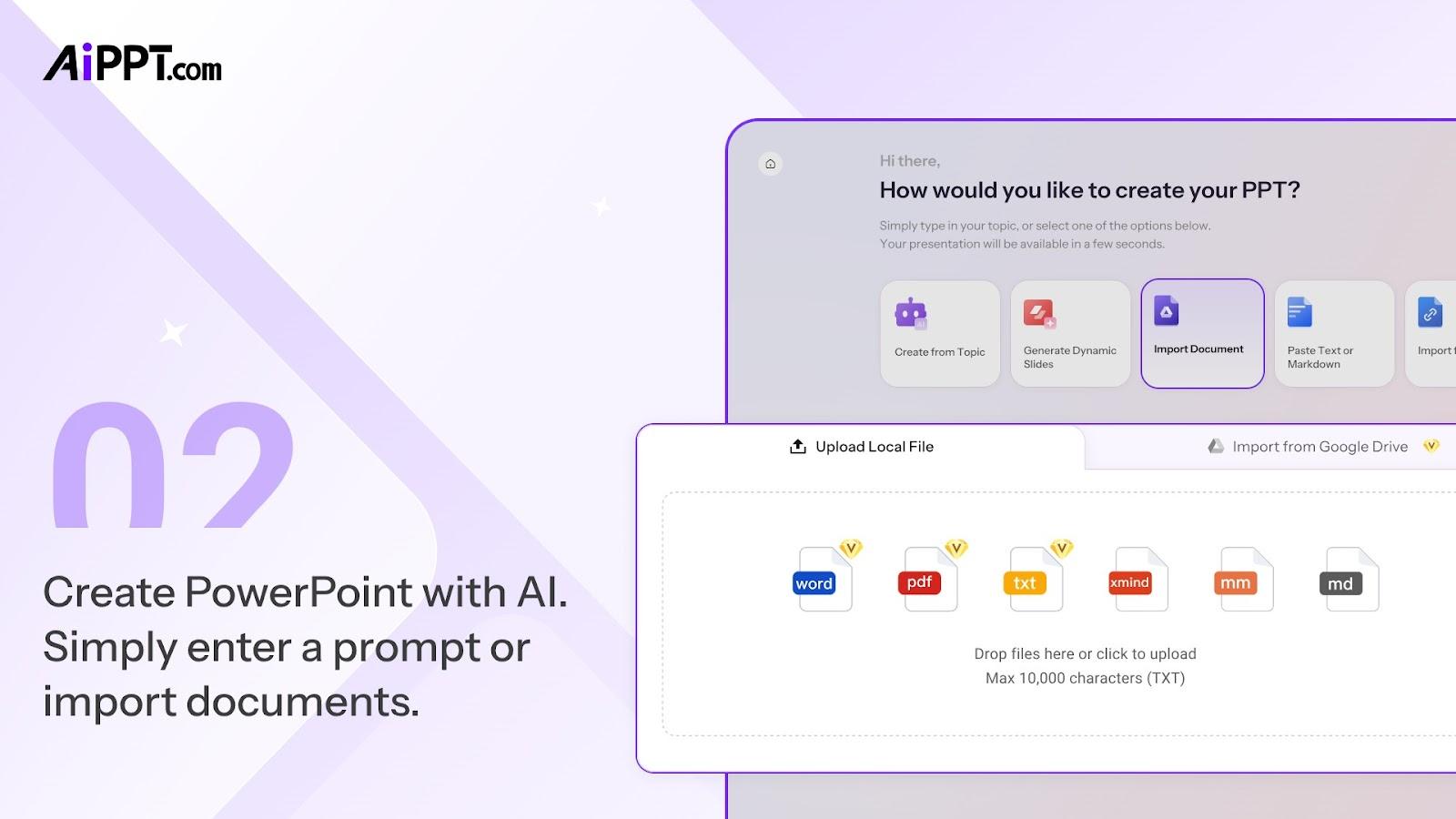
A 15-page market research PDF became a 14-slide presentation in about 90 seconds. The AI identified the report’s structure—introduction, methodology, findings, recommendations—and mapped each section to appropriate slide layouts. I was surprised by how well it preserved the original meaning while condensing verbose sections into concise bullet points.
Google Drive integration eliminated copy-pasting. I connected my Google account and imported Docs and Slides directly. A 30-page Google Doc converted into a 20-slide deck without me downloading or re-uploading anything. The AI maintained heading hierarchies, lists, and even basic formatting.
URL conversion worked better than expected. I dropped in a competitor’s product page URL, and AiPPT generated a presentation analyzing their features, pricing, positioning, and customer reviews. Another test with a news article produced a 6-slide summary deck covering key facts, quotes, and implications. This feature alone saved me hours of manual research and summarization.
3. Massive Template Library with One-Click Swapping
The template library contains over 200,000 designer-made options organized by industry, scenario, and style. I browsed categories including business, education, marketing, sales, product launch, timeline, roadmap, company profile, and more.
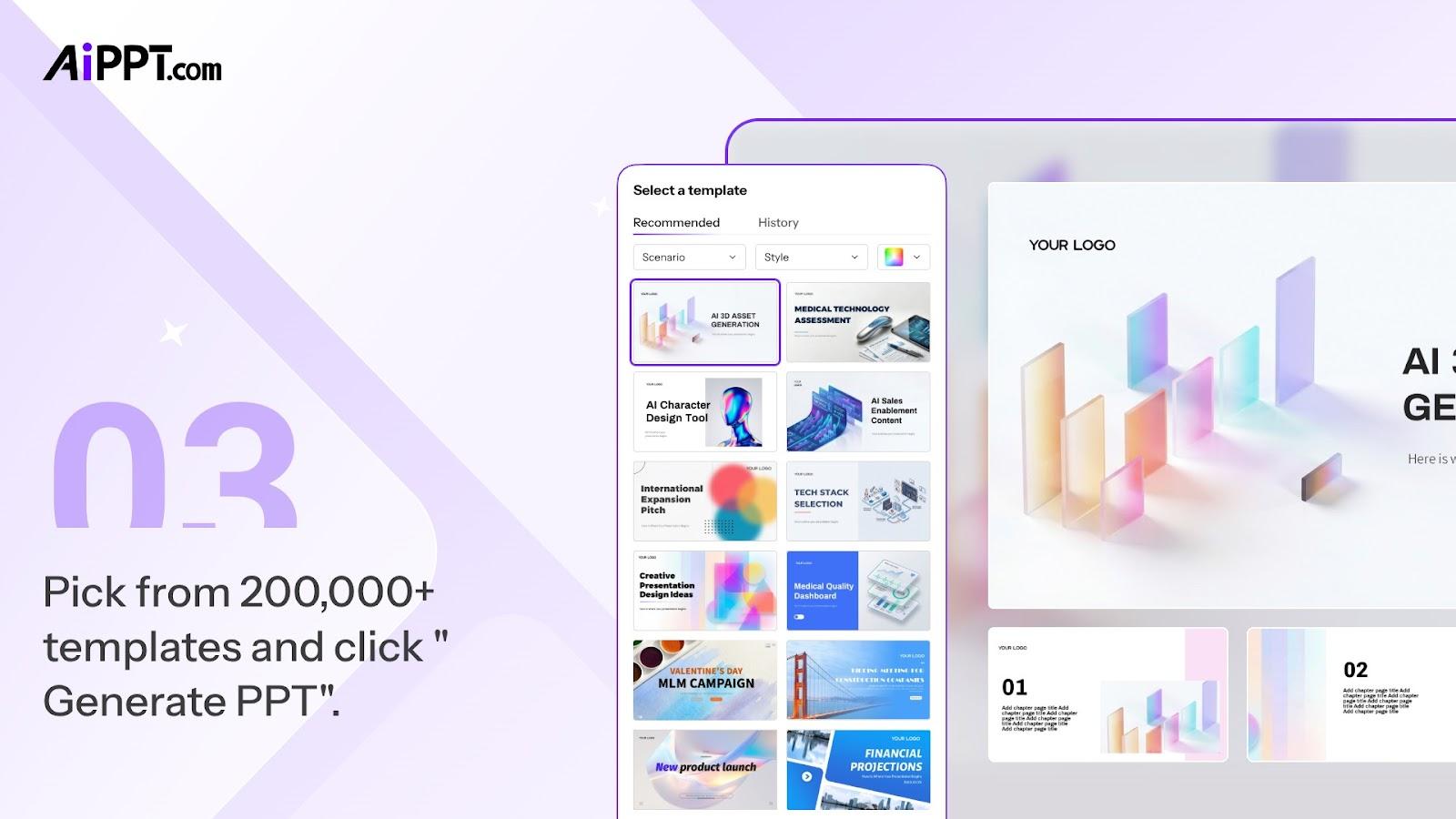
The one-click template swap feature is game-changing. After generating a deck with a basic template, I clicked “change template” and selected a different design. The entire presentation reformatted instantly—colors, fonts, layouts, and slide structures all updated while preserving my content. No rebuilding, no copy-pasting, no reformatting individual slides.
I tested this by generating the same content across five different templates. Business professional, creative agency, educational, minimal modern, and bold startup—each applied perfectly without breaking slide structures or misplacing content. Traditional presentation tools would require rebuilding from scratch or hours of manual adjustment.
Templates include specialized layouts for timelines, roadmaps, company profiles, and data visualization. For a product roadmap presentation, I selected a timeline template that automatically formatted my milestones into a visual timeline. For a client case study, a profile template arranged company background, challenge, solution, and results sections perfectly.
4. Full Editor and Export Options
AiPPT’s built-in editor lets you modify text, layouts, backgrounds, images, tables, and charts directly. You can replace templates or add more AI-generated slides after the initial generation.
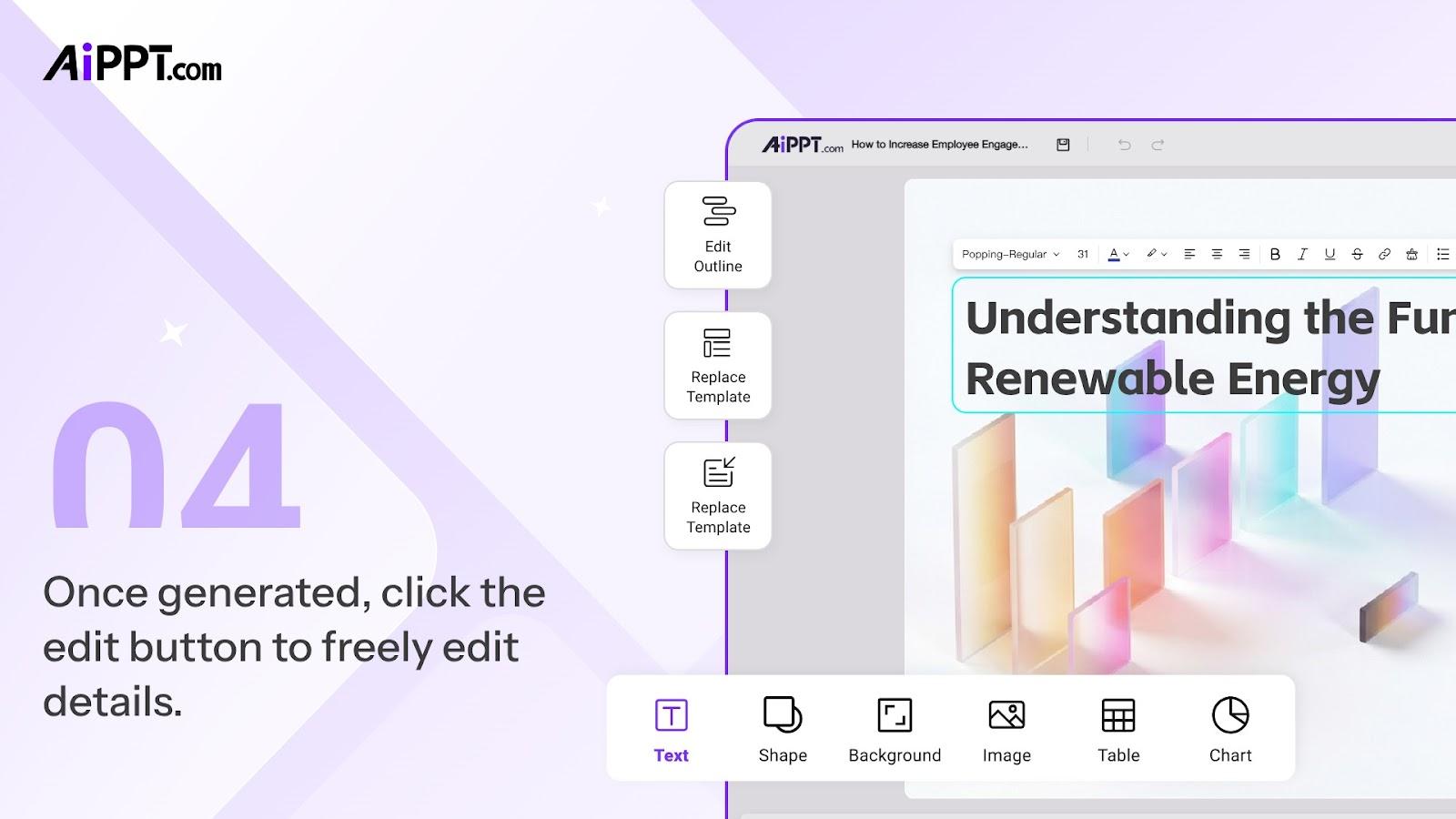
The editor feels similar to basic presentation tools but with AI assistance. I added a new slide mid-deck, clicked “generate with AI,” typed a prompt, and the AI created the slide content using the existing template style. This hybrid approach—manual editing plus AI generation—worked well for iterative presentations where client feedback required specific changes.
Export options include PPTX (native PowerPoint), PDF, and image formats. The PPTX export preserved all formatting, fonts, and layouts when opened in Microsoft PowerPoint. I didn’t need to fix broken slides or missing fonts—a common problem with presentation tools. PDF export worked for sharing read-only versions, and image export (PNG/JPG) worked for embedding slides into other documents.
The AI image generator (500-1000 monthly credits depending on tier) created custom visuals for slides. I generated charts, icons, and illustrative images without leaving the editor. Quality varied—simple icons and illustrations worked well, but complex infographics required manual adjustments.
My Honest AiPPT Review: Testing Experience
I tested AiPPT for three weeks, creating 15 presentations across different use cases: business proposals, educational lectures, sales decks, product roadmaps, and conference presentations. Total slides generated: approximately 250.
Week one focused on text prompt generation. I started with simple prompts like “Explain blockchain to beginners” and advanced to complex prompts like “Q4 sales strategy for B2B SaaS targeting enterprise clients with competitive analysis and implementation timeline.” The AI handled both well, but more detailed prompts produced significantly better results. A vague prompt generated generic content; a prompt with specific context (target audience, key messages, desired structure) generated presentation-ready content requiring minimal edits.
The document conversion impressed me most. I uploaded a messy 25-page Google Doc with inconsistent formatting, multiple authors, and embedded comments. AiPPT extracted the core content into a clean 18-slide deck, ignoring comments and formatting noise. The AI correctly identified which sections were important versus which were administrative notes. This alone saved me 2-3 hours of manual restructuring.
URL conversion exceeded expectations. I converted a competitor’s 10-page landing page into a 8-slide competitive analysis deck. The AI extracted pricing, features, testimonials, and positioning. For market research, I converted 15 competitor URLs into individual presentations, then compared them side-by-side. Manual version would have taken two days; AiPPT completed it in 90 minutes.
The template library and swapping feature became my favorite workflow. I generated a basic deck first, then tested 5-10 templates to see which presentation design best fit the audience. Previously, template selection happened before content creation—a backward process. With AiPPT, content first, design second, and one-click swapping eliminated design indecision paralysis.
Where did AiPPT struggle? The AI-generated text occasionally sounded generic or overly promotional. For a sales deck, the AI wrote “Our revolutionary product changes everything”—cliché and unhelpful. I manually rewrote marketing language to be more specific and credible. The AI image generator produced inconsistent quality. Some images were excellent; others had distorted proportions or irrelevant content. I used about 60% of generated images and replaced the rest with stock photos.
The daily limits required attention. Tier 1’s 20 AI generations daily sounds generous, but generating a deck, then regenerating it with a different prompt, then generating additional slides consumes generations quickly. I hit the daily limit once during heavy testing (15 presentations in one day). For normal usage (2-3 presentations daily), Tier 1 works fine. Heavy users should consider Tier 2’s 40 daily generations.
The 20-slide per presentation limit in Tier 1 feels restrictive for detailed presentations. My average deck was 12 slides, but some technical presentations needed 25+ slides. I had to split those across multiple generation runs or upgrade to Tier 2’s 50-slide limit. Check your typical presentation length before choosing tiers.
Customer support responded within 24 hours during my testing. The knowledge base includes video tutorials and written guides. The AppSumo community rating of 4.67/5 (across 18 reviews) reflects strong satisfaction—14 five-taco ratings, 3 four-taco, 1 two-taco. The two-taco review cited the 20-slide limit as too restrictive for their needs.
Founder updates indicate active development including more AI models, improved image generation, and additional export formats. The team clarified that all usage limits are renewable daily/monthly, not one-time—a common concern addressed in their April 2026 update.
Who Should Use AiPPT?
Based on my testing across 15 presentations, AiPPT delivers exceptional value for specific users but may be overkill for others.
Best for: Business professionals creating regular presentations who want to cut design time by 80%. Educators and trainers converting lesson plans into visual slides. Marketers turning blog posts and reports into pitch decks. Students transforming research papers into presentation-ready content. Sales teams creating customized decks for different prospects. Anyone who dreads starting from a blank slide and formatting manually.
Not for: Users needing highly custom animations or complex transitions—AiPPT focuses on static slides. Professional presentation designers who prefer manual control over every pixel. Users with zero internet connection (web-based only). Anyone who creates fewer than 5 presentations annually (learning curve may not justify cost). Teams requiring real-time collaboration (no multi-user editing).
Tier recommendations: Tier 1 ($99) works for individuals creating 2-5 presentations weekly with up to 20 slides each. Tier 2 ($149) suits heavy users creating daily presentations, needing 40+ slides, or requiring unlimited AI edits. The $50 upgrade doubles most limits and adds unlimited edits—worth it for power users.
AiPPT vs Competitors
I compared AiPPT against three alternatives: Beautiful.ai (AI design-focused), Tome (AI storytelling), and traditional PowerPoint with manual design. Here’s how they stack up.
| Feature | AiPPT | Beautiful.ai | Tome | PowerPoint (Manual) |
|---|---|---|---|---|
| Input Methods | Text, PDF, Word, URL, Google Drive | Text only | Text only | Manual import only |
| Template Library | 200,000+ | Limited (design-focused) | Limited | Hundreds (built-in) |
| One-Click Template Swap | ✅ After generation | ❌ Must choose first | ❌ | ❌ Rebuild required |
| Document/URL Conversion | ✅ Full support | ❌ | ❌ | ❌ Manual only |
| AI Image Generation | ✅ 500-1000 credits monthly | ❌ | ✅ Limited | ❌ (Microsoft Designer add-on) |
| Export Formats | PPTX, PDF, Images | PDF, PPTX (paid) | PDF, shareable link | PPTX, PDF, many others |
| Pricing Model | $99-149 lifetime | $12-40/month | $10-20/month | $70-150/year (Microsoft 365) |
AiPPT’s biggest advantage is input flexibility—no other tool converts PDFs, Word docs, and URLs into presentations. The 200,000+ template library and one-click swapping are also unique. Lifetime pricing beats Beautiful.ai and Tome’s monthly subscriptions within 3-6 months of use.
For alternatives, consider our complete guide to AI presentation tools. Beautiful.ai offers superior design automation for users who prioritize aesthetics over content generation. Tome excels at narrative storytelling. Traditional PowerPoint remains best for complex animations, custom master slides, and offline editing.
What Users Are Saying About AiPPT
The AppSumo community rates AiPPT 4.67/5 across 18 reviews. Fourteen users gave five tacos (highest rating), three gave four tacos, and one gave two tacos.
Positive reviews consistently praise the time savings. Users report creating presentations in 10-20 minutes that previously took 2-3 hours. The document conversion feature receives frequent mention—one reviewer converted a 50-page compliance document into a 25-slide training deck in under 5 minutes.
The template library and swapping feature earn widespread praise. Several reviewers noted they no longer waste hours choosing templates before content creation. One user said, “I generate content first, then try 10 templates in 2 minutes to see what looks best.”
URL conversion surprised many users. Reviewers report converting competitor websites, news articles, and blog posts into competitive analysis decks instantly. One marketing agency owner said AiPPT reduced their prospect research time by 70%.
Critical reviews focus on three areas: slide limits, text quality, and image generation. The two-taco review cited the 20-slide per presentation limit as deal-breaking for their long-form training decks. Several four-taco reviewers noted that AI-generated text required editing for brand voice and specificity. Image generation quality received mixed feedback—good for simple visuals, inconsistent for complex infographics.
One recurring theme in comments: users want longer slide limits in Tier 1 and better brand voice customization. The founders have acknowledged these requests in updates, with Tier 2 already offering 50-slide limits.
Founder updates indicate active development including more AI models, improved image generation, and team collaboration features. The team clarified that all usage limits are renewable (daily/monthly), addressing early confusion about one-time vs recurring limits.
AiPPT Review: FAQ
What input formats does AiPPT support for generating presentations?
AiPPT supports text prompts (type a topic or paste Markdown), document uploads (Word, PDF, TXT), Google Drive imports (Docs and Slides), and URL conversion (any webpage). You can switch between modes at any time during a project. The AI extracts key points from each input and structures them into slide decks.
Are the usage limits one-time or recurring?
All usage limits are recurring (daily or monthly), not one-time. For Tier 1: 20 AI generations per day reset daily, 500 AI image credits per month reset monthly, 20 slides per presentation limit applies per file, 30 AI edits per day reset daily. Tier 2 has higher limits: 40 daily generations, 1000 monthly image credits, 50 slides per presentation, unlimited daily edits.
Can I edit presentations after AI generation?
Yes, AiPPT includes a full editor where you can modify text, layouts, backgrounds, images, tables, and charts. You can also replace the entire template with one click (no rebuilding required) or add more AI-generated slides using text prompts. The editor preserves formatting when you export to PPTX or PDF.
Does AiPPT work with Microsoft PowerPoint?
Yes, you can export finished decks as PPTX files that open in Microsoft PowerPoint with full formatting preserved—fonts, colors, layouts, and images. You can continue editing in PowerPoint after export. AiPPT also exports to PDF for sharing and image formats (PNG/JPG) for embedding slides elsewhere.
What’s the difference between Tier 1 and Tier 2?
Tier 1 ($99) includes 20 AI generations daily, 500 AI image credits monthly, 20 slides per presentation, and 30 AI edits daily. Tier 2 ($149) doubles most limits: 40 AI generations daily, 1000 AI image credits monthly, 50 slides per presentation, and unlimited AI edits. Tier 2 also includes advanced AI models for higher-quality generation. The $50 upgrade is worthwhile for heavy users creating 3+ presentations daily or decks over 20 slides.
For more presentation tips, check out our complete guide to presentation design covering storytelling, data visualization, and audience engagement for 2025.