
Flonnect Review: What Is This AI Screen Recorder?
I’ve tested dozens of screen recording tools over the years, and most fall into two camps: simple recorders with no editing, or professional video editors with a steep learning curve. Flonnect aims to bridge that gap by combining screen capture, AI-powered editing, and team collaboration in one platform.
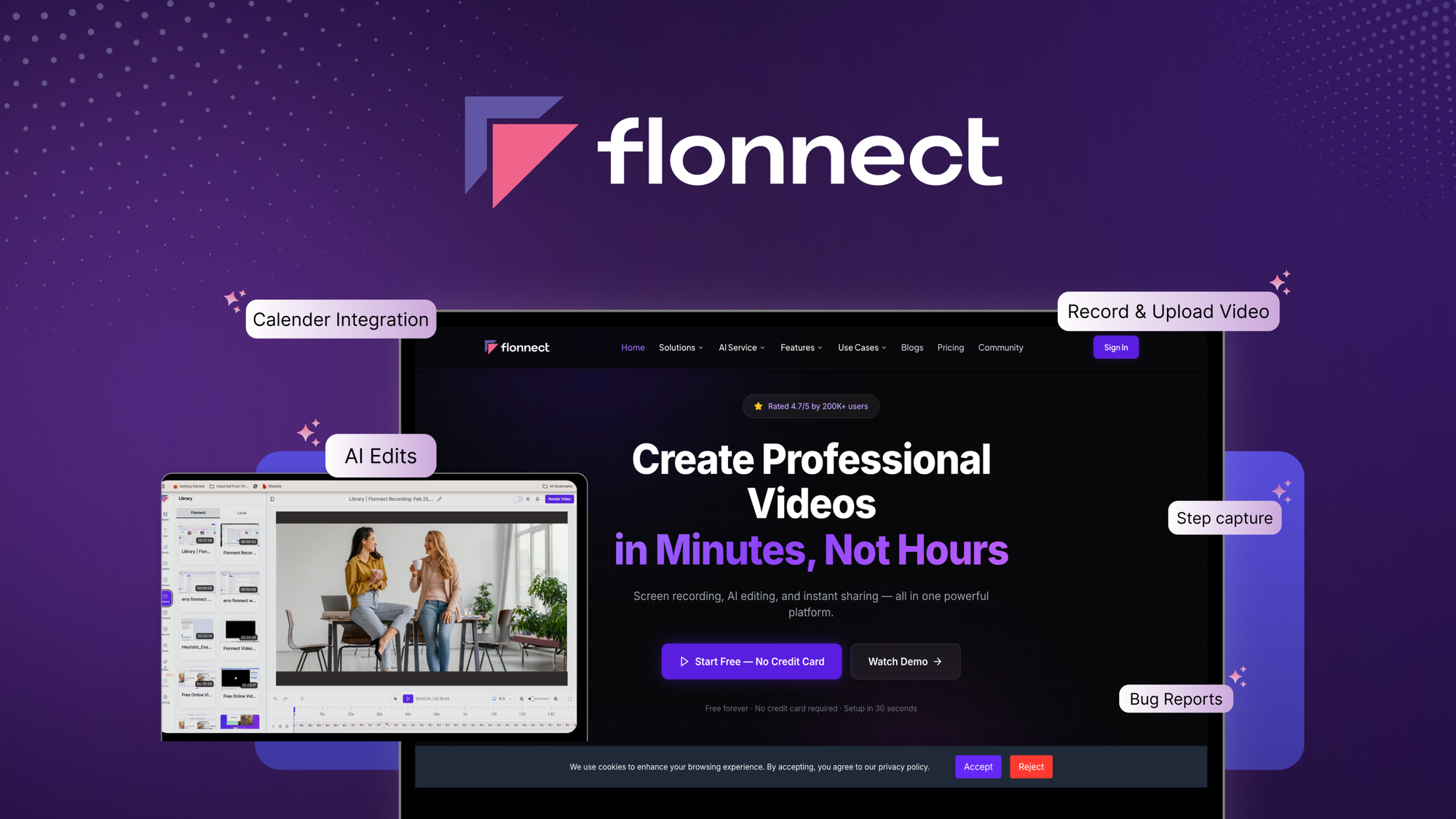
In essence, Flonnect lets you record your screen, webcam, or both simultaneously. But the real magic happens after recording: AI trims silences, adds captions, transcribes audio, and even generates summaries. You can turn any workflow into a step-by-step guide with automatic screenshots, capture bug reports with annotated screenshots and video evidence, then share everything instantly via link or embed.
Currently offered as a lifetime deal on AppSumo (priced from $79 for Tier 1, originally $144), Flonnect positions itself against tools like Loom, ScreenStudio, and Tella. After spending two weeks testing every feature, here’s my honest take.
Key Features of Flonnect
1. Multi-Source Recording with Movable Camera Bubble
Flonnect gives you three recording modes: screen only, webcam only, or screen + camera. I found the screen+camera mode most useful for tutorials. The movable camera bubble can be repositioned during recording, resized, or even toggled off temporarily. You can record a browser tab, specific window, or full screen with both mic and system audio.
During my tests, audio sync remained perfect across 15+ recordings. The annotation toolbar lets you draw, highlight clicks, and add text while recording – no need for post-production markup.
2. AI-Powered Video Polishing
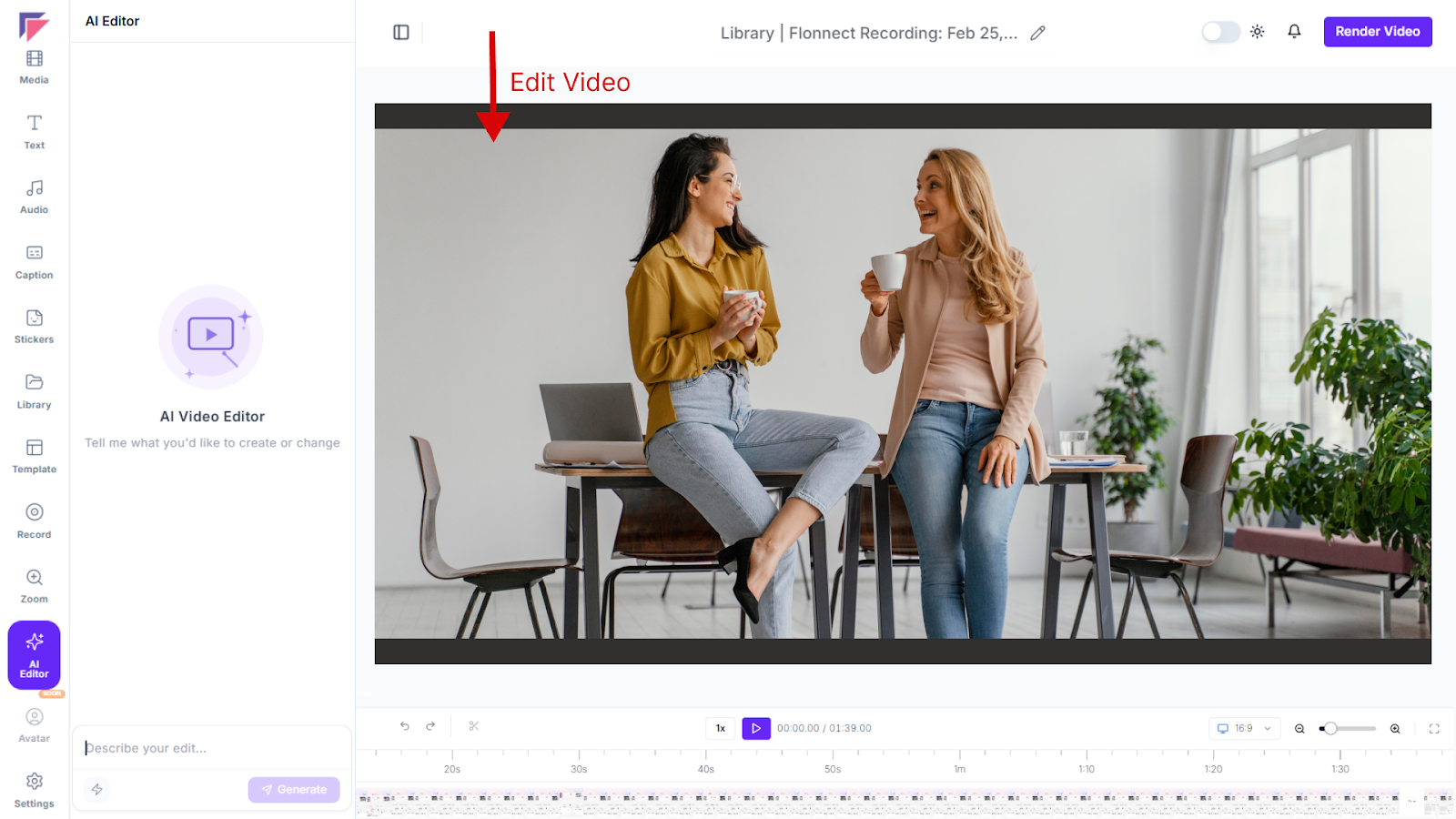
This is where Flonnect separates from basic recorders. After recording, the AI editor can:
- Trim silence and awkward pauses automatically
- Add captions with customizable styling
- Generate transcripts and meeting summaries
- Remove filler words (“um”, “ah”) on demand
I recorded a 12-minute software demo with several mistakes. Flonnect’s AI trimmed it to 8 minutes seamlessly. The auto-caption accuracy was about 95% – not perfect, but easily editable. Each AI action consumes credits (Tier 1 gives 100 monthly, Tier 2 gives 200, Tier 3 gives 400).
3. Step Recorder for Workflow Documentation
The step recorder automatically captures screenshots as you click through a process, creating a visual guide with notes. I used this to document a 14-step onboarding flow – Flonnect generated a clean HTML guide with thumbnails and descriptions in under 2 minutes. This alone saved me about an hour of manual screenshot editing.
You can export these guides as PDF, HTML, or share via link. For product managers and technical writers, this feature is a game-changer.
4. Bug Reporting with Annotations
When testing software, I often need to report issues. Flonnect’s bug report mode captures screenshots with arrows, boxes, and text annotations. You can record video evidence alongside, then file everything to GitHub, Jira, or Asana via integrations. The console logs and browser metadata are automatically attached – developers will appreciate this.
5. Share, Embed, and Track Engagement
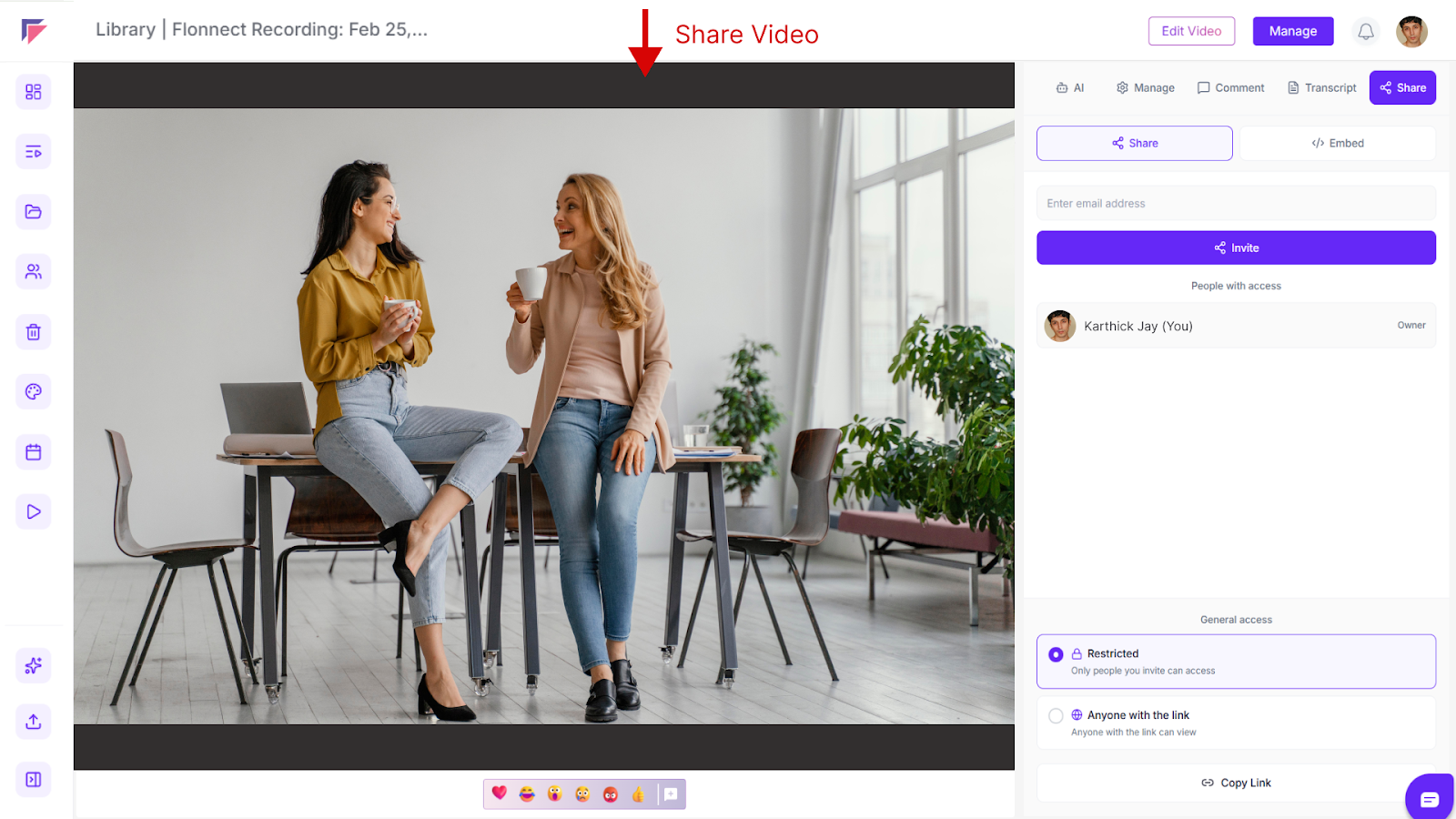
Once your video is polished, Flonnect generates a shareable link. Viewers can leave timestamped comments and reactions – no account required. You can embed videos on any website or in tools like Notion, Slack, and Intercom. The analytics dashboard shows who watched, for how long, and where they dropped off.
My Honest Flonnect Review: Testing Experience
I put Flonnect through a week of real-world use. Here’s what I found.
Recording experience: The desktop app (available for Mac and Windows) is lightweight – about 80MB memory usage. Recording started within 2 seconds of clicking. The floating control bar stays out of your way but is accessible when needed. I recorded a 45-minute webinar with screen+webcam; the file size was 380MB, which is reasonable for 1080p.
AI editing accuracy: The silence removal worked flawlessly – it kept natural pauses but cut dead air. Auto-captioning struggled slightly with technical jargon (“API endpoint” became “API and point”), but the edit interface makes corrections simple. The transcript generation took about 90 seconds for a 10-minute video, which felt fast.
Step recorder test: I documented a HubSpot workflow. Flonnect captured 23 screenshots across 8 minutes. The automatic descriptions were accurate for 19 of them. The output HTML guide was clean and immediately usable for customer onboarding.
Sharing and feedback: I shared three videos with my team. The comment interface is intuitive – viewers can pause and type feedback at specific timestamps. The engagement tracking showed me exactly where one viewer stopped watching (at 2:37, where I stumbled over an explanation). That insight alone helped me improve the next version.
Limitations I noticed: The mobile app is read-only – you can view and comment on videos but not record. 4K recording isn’t supported yet (max 1080p at 30fps). The AI credits system means heavy users will need higher tiers. And brand kit customization (logos, colors) is only available from Tier 2 upward.
Who Should Use Flonnect?
Based on my testing, Flonnect excels for specific user profiles.
Customer success teams: Create personalized onboarding videos and troubleshooting guides. The step recorder is perfect for documenting common workflows.
Product managers and developers: The bug reporting workflow with GitHub integration saves hours of back-and-forth. Annotated screenshots plus video evidence means fewer “reproduce this” emails.
Trainers and educators: The AI captions and transcripts make content accessible. You can record lessons once, then repurpose transcripts as study notes.
Freelancers and agencies: Share client updates, design walkthroughs, and deliverable explanations. The engagement tracking shows you which parts clients actually watch.
Who should look elsewhere: If you need 4K recording or advanced color grading, Flonnect isn’t for you. Professional video editors will miss multi-track timelines. Teams needing SSO or advanced permissions should check enterprise alternatives. And if you record 100+ videos monthly, the AI credit limits on lower tiers may be restrictive.
Flonnect vs Competitors
Here’s how Flonnect compares to other screen recording tools I’ve used.
| Feature | Flonnect | Loom | ScreenStudio |
|---|---|---|---|
| AI trimming & captions | ✓ (credit-based) | Limited | ✓ |
| Step-by-step guides | ✓ | ✗ | ✗ |
| Bug reporting with GitHub | ✓ | ✗ | ✗ |
| Mobile recording | View only | ✓ | ✗ |
| Lifetime deal price | $79+ | Subscription only | $49+ subscription |
Loom is simpler and has better mobile support, but Flonnect wins on AI editing and documentation features. ScreenStudio offers similar AI polish but lacks the step recorder and bug reporting. For lifetime pricing, Flonnect is compelling.
What Users Are Saying About Flonnect
With 8 reviews averaging 4.12 stars on AppSumo, user sentiment is generally positive. Here’s what the community reports.
Users consistently praise the step recorder feature. One reviewer wrote that it “turned a 3-hour documentation task into 20 minutes.” Another noted the AI captions save “hours of manual editing each week.” The movable camera bubble receives frequent shout-outs for flexibility.
Constructive feedback centers on limitations. Several users report wanting 4K recording. A few mention that the AI credit consumption isn’t always clear – some edits use multiple credits unexpectedly. The mobile app’s read-only nature disappoints users who need on-the-go recording. One reviewer noted that the desktop app occasionally crashes on older Mac hardware (2017 models).
Overall, users recommend Flonnect for teams creating internal documentation and customer-facing tutorials, while cautioning that professional video creators may want more advanced tools.
Flonnect Review: FAQ
Is Flonnect better than Loom?
It depends on your needs. Flonnect offers superior AI editing (auto-trim, captions, transcripts) and unique features like step recording and bug reporting. Loom is simpler, has a mobile app, and integrates with more everyday tools. For tutorial creation and documentation, Flonnect wins. For quick async messages, Loom is still great.
How do AI credits work in Flonnect?
Each AI action consumes credits: trimming (5 credits), adding captions (10 credits), transcription (15 credits), filler word removal (8 credits). Tier 1 gives 100 monthly, Tier 2 gives 200, Tier 3 gives 400. Unused credits don’t roll over. You can purchase additional credits separately if needed.
Can I record Microsoft Teams meetings with Flonnect?
Yes, you can record any meeting or call by selecting the Teams window as your recording source. Flonnect captures both system audio and your microphone. The AI can then generate summaries and transcripts automatically – useful for meeting documentation.
Does Flonnect work on Mac and Windows?
Yes, Flonnect offers native desktop apps for both macOS (10.15+) and Windows (10+). Browser extensions are available for Chrome and Edge. The mobile app (iOS and Android) is view-only – you can watch and comment but not record.
What happens after the AppSumo deal ends?
You keep lifetime access to the tier you purchased. Future updates to that plan are included. However, if Flonnect introduces new premium features beyond your plan’s scope, those may require upgrades. The company has confirmed they will honor all lifetime deal terms indefinitely for existing customers.